Author: jzhou

  • Convert Page to Post

    How to Convert a Page to a Post in WordPress

    If you need to convert a WordPress page into a post, here are the best ways to do it:


    1️⃣ Use a Plugin (Easiest Method)

    The best way to convert a page to a post is by using a plugin.

    🔹 Recommended Plugin: Post Type Switcher

    Allows easy conversion between pages and posts
    Keeps content, SEO, and formatting intact
    No coding required

    🔹 Steps to Convert a Page to a Post

    1. Install & Activate the “Post Type Switcher” plugin.
    2. Go to Pages → All Pages in the WordPress dashboard.
    3. Find the page you want to convert.
    4. Click Quick Edit and change the “Post Type” to Post.
    5. Click Update—done! 🎉

    📌 You can also bulk-edit multiple pages to convert them into posts.


    2️⃣ Convert Manually (Without a Plugin)

    If you don’t want to use a plugin, you can manually copy the page content and re-create it as a post.

    🔹 Steps:

    1. Open the page you want to convert.
    2. Copy all the content.
    3. Go to Posts → Add New and paste the content.
    4. Assign the correct category and tags.
    5. Click Publish, then delete the original page (optional).

    📌 This method is best for a small number of pages.


    3️⃣ Convert Using PHP Code (For Developers)

    If you need to bulk convert pages to posts, you can use a small PHP script.

    🔹 Add This Code to functions.php

    function convert_pages_to_posts() {
        global $wpdb;
        $wpdb->query("UPDATE $wpdb->posts SET post_type='post' WHERE post_type='page'");
    }
    add_action('init', 'convert_pages_to_posts');

    📌 This will convert ALL pages to posts!
    🔴 Warning: Remove the code after running it to prevent it from executing repeatedly.


    🎯 Which Method Should You Use?

    • Use a Plugin if you want a quick and easy way.
    • Copy & Paste Manually if you only need to convert a few pages.
    • Use PHP Code if you want to bulk-convert many pages.

    Would you like help choosing the best option for your case? 😊
  • Group Pages with Categories

    Can You Group Pages by Category in WordPress?

    By default, WordPress does not support categories for pages (only for posts). However, you can still group pages using categories by using plugins or custom code.

    1️⃣ Using a Plugin (Easy Method)

    The easiest way to add categories to pages is by using a plugin.

    📌 Recommended Plugin: Pages with Category and Tag

    🔹 Features:

    ✅ Adds category and tag support to pages

    ✅ Lets you filter and display pages by category

    ✅ Works with WordPress menus and widgets

    🔹 How to Use:

    1. Install & activate the “Pages with Category and Tag” plugin.

    2. Go to Pages → Categories (just like posts).

    3. Assign categories to pages.

    4. Use the following shortcode to display grouped pages:

    [query_pages category_name="your-category"]

    (Replace “your-category” with the actual category name.)

    2️⃣ Adding Categories to Pages via Custom Code (Advanced)

    If you don’t want a plugin, you can manually enable categories for pages.

    🔹 Step 1: Add This Code to Your Theme’s functions.php File

    function add_categories_to_pages() {
        register_taxonomy_for_object_type('category', 'page');
    }
    add_action('init', 'add_categories_to_pages');

    📌 This will enable categories for pages, allowing you to group them.

    🔹 Step 2: Display Pages by Category

    To list pages by category in a template, use:

    <?php
    $pages = get_posts(array(
        'post_type' => 'page',
        'category_name' => 'your-category',
        'posts_per_page' => -1
    ));
    
    foreach ($pages as $page) {
        echo '<a href="' . get_permalink($page->ID) . '">' . $page->post_title . '</a><br>';
    }
    ?>

    📌 Replace “your-category” with your desired category name.

    3️⃣ Alternative: Use Custom Taxonomies

    Instead of categories, you can create a custom taxonomy for pages (e.g., “Page Groups”).

    🔹 Add This Code to functions.php

    function create_page_taxonomy() {
        register_taxonomy('page_category', 'page', array(
            'label' => 'Page Categories',
            'hierarchical' => true,
            'show_admin_column' => true,
        ));
    }
    add_action('init', 'create_page_taxonomy');

    📌 This will create a new taxonomy called Page Categories in the WordPress admin.

    🎯 Best Option for You?

    • ✅ Use a Plugin if you want an easy, no-code solution.

    • ✅ Use Custom Code if you prefer a lightweight, customizable option.

    • ✅ Use Custom Taxonomies if you want a more advanced grouping system.

    Do you need help displaying these grouped pages on your site? 😊

  • Post List

    • Convert Page to Post

      How to Convert a Page to a Post in WordPress If you need to convert a WordPress page into a post, here are the best ways to do it: 1️⃣ Use a Plugin (Easiest Method) The best way to convert a page to a post is by using a plugin. 🔹 Recommended Plugin: Post Type…

    • Group Pages with Categories

      Can You Group Pages by Category in WordPress? By default, WordPress does not support categories for pages (only for posts). However, you can still group pages using categories by using plugins or custom code. 1️⃣ Using a Plugin (Easy Method) The easiest way to add categories to pages is by using a plugin. 📌 Recommended Plugin: Pages with Category and Tag…

    • Post List

    • 小红书Embed

      Show you have to embed a xiaohongshu link to the page

    • Sidebar

      Adding a sidebar to a WordPress page depends on your theme and the method you prefer. Here are the main ways to do it: 1. Use WordPress Widgets (Easiest Method) Most WordPress themes support sidebars that can be managed through Appearance > Widgets. Steps: 👉 Note: If your theme doesn’t support sidebars, try another method…

    • Password Protecting Site

      Password protecting a WordPress site can be done in several ways depending on the level of security you need. Here are the main methods: 1. Use a Plugin (Easiest Method) Several plugins allow you to easily password-protect your entire site, individual pages, or posts. Recommended Plugins: Steps to Use the “Password Protected” Plugin: 2. Password…

    • Image Map (hotspot)

      Here are some free online tools to create hotspot images (image maps) easily: 1. Image-Map.net (Free & Simple) 🔗 https://www.image-map.net/ 2. ImageMapster (Interactive Hotspots) 🔗 http://www.outsharked.com/imagemapster/ 3. HTML-Map Creator (Basic & Lightweight) 🔗 https://www.maschek.hu/imagemap/imgmap 4. Canva (With Links) (Drag & Drop, Free with Limitations) 🔗 https://www.canva.com/ Would you like help integrating one of these into…

    • WordPress Theme

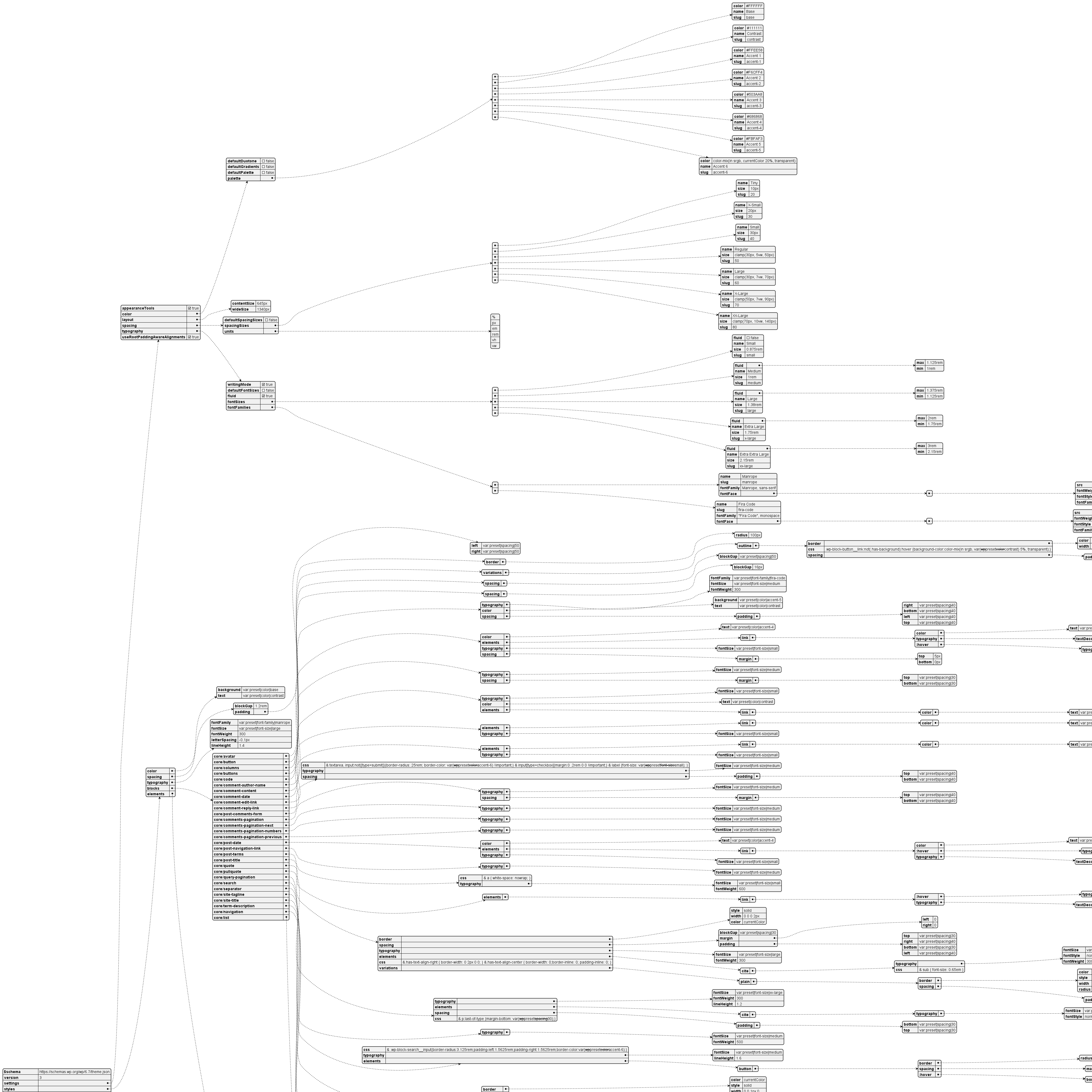
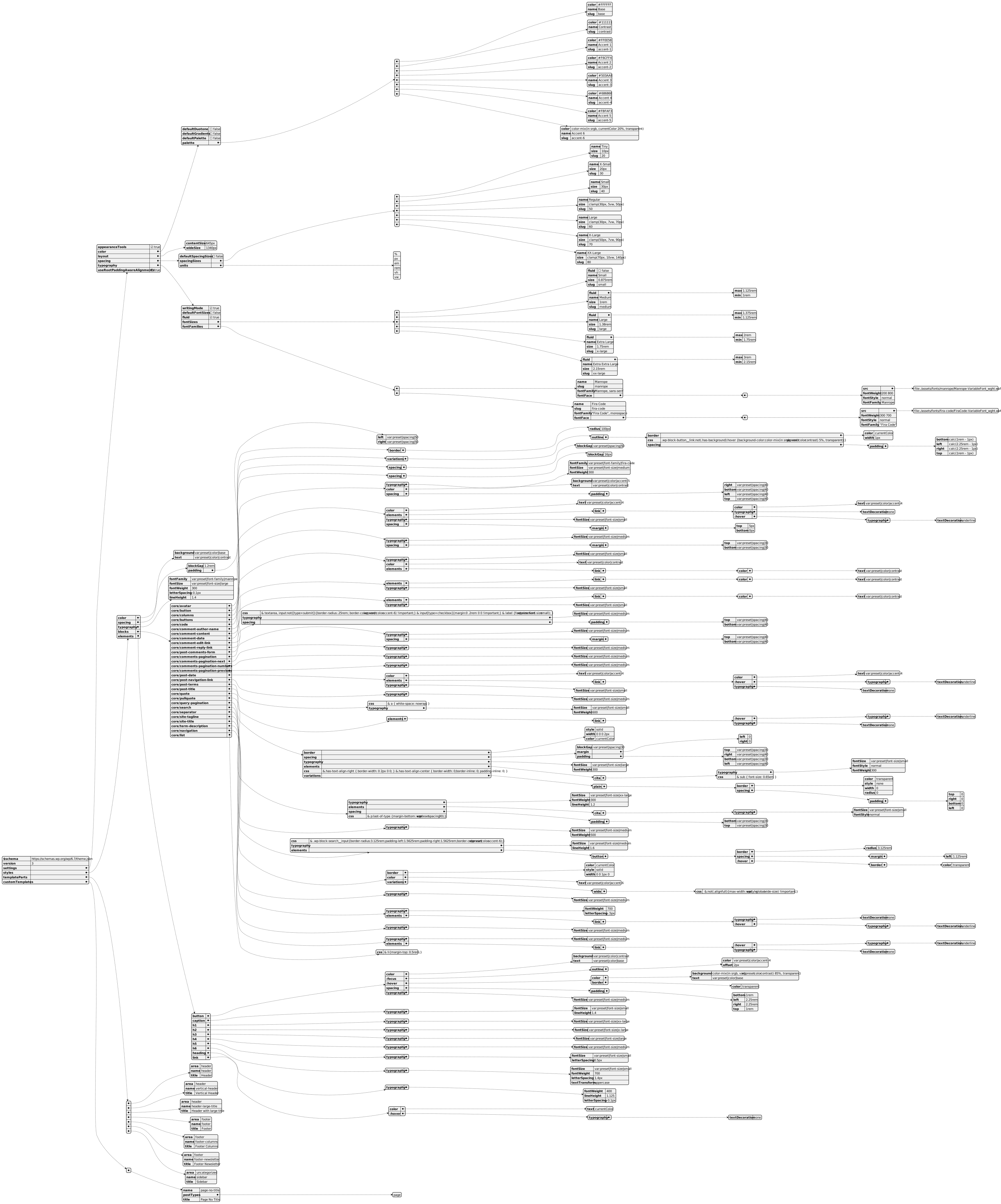
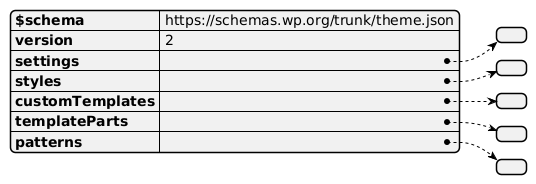
      URLs Reference Learning Theme Handbook theme.json 2025 theme.json https://notes.zj1963.com/wp-content/uploads/2025/02/theme-json.svg

  • 小红书Embed

    How to

    Add a custom HTML like below

    <iframe src="https://www.xiaohongshu.com/discovery/item/67248d63000000001a01cb99?source=webshare&xhsshare=pc_web&xsec_token=ABuE7a6h9fzvs1VIdfQMcyk1k4kt5og6BY0jao841VKTM=&xsec_source=pc_share" width="100%" height="600px"></iframe>

    Example

  • Sidebar

    Adding a sidebar to a WordPress page depends on your theme and the method you prefer. Here are the main ways to do it:


    1. Use WordPress Widgets (Easiest Method)

    Most WordPress themes support sidebars that can be managed through Appearance > Widgets.

    Steps:

    1. Go to WordPress Dashboard → Navigate to Appearance > Widgets.
    2. Look for a Sidebar section.
    3. Drag and drop widgets (e.g., Recent Posts, Categories, Custom HTML) into the sidebar.
    4. Save changes, and the sidebar should appear on pages where your theme supports it.

    👉 Note: If your theme doesn’t support sidebars, try another method below.


    2. Assign a Sidebar Template (If Your Theme Supports It)

    Some themes come with sidebar page templates.

    Steps:

    1. Edit the page in WordPress.
    2. On the right sidebar, find the Page Attributes section.
    3. Look for a Template dropdown.
    4. Choose a template like “Page with Sidebar” or “Sidebar Layout”.
    5. Update the page, and the sidebar should appear.

    3. Add a Sidebar with a Page Builder (Elementor, Divi, etc.)

    If you’re using a page builder, you can manually insert a sidebar.

    For Elementor Users:

    1. Edit the page with Elementor.
    2. Click on the “+” button to add a new section.
    3. Choose a two-column layout (one for content, one for sidebar).
    4. In the sidebar column, drag in the Sidebar Widget (under General Elements).
    5. Adjust the width, style, and update the page.

    👉 This works similarly for Divi, Beaver Builder, or WPBakery.


    4. Manually Add Sidebar via Theme Customization

    If your theme doesn’t include a sidebar, you can edit your theme files.

    Steps:

    1. Go to Appearance > Theme Editor.
    2. Find and edit the page.php file.
    3. Look for the line:
       <?php get_template_part( 'content', 'page' ); ?>
    1. Add this before or after the main content:
       <?php get_sidebar(); ?>
    1. Save the file, and the sidebar should now appear.

    👉 Note: If your theme doesn’t have a sidebar.php file, you may need to create one.


    Which Method Should You Use?

    • For beginners: Use widgets in Appearance > Widgets.
    • If your theme supports it: Choose a Sidebar Page Template.
    • If using a page builder: Use Elementor’s Sidebar Widget.
    • For advanced users: Manually add get_sidebar(); in theme files.

    Would you like help customizing the sidebar further? 😊

  • Password Protecting Site

    Password protecting a WordPress site can be done in several ways depending on the level of security you need. Here are the main methods:


    1. Use a Plugin (Easiest Method)

    Several plugins allow you to easily password-protect your entire site, individual pages, or posts.

    Recommended Plugins:

    • Password Protected – Simple and lightweight for locking the whole site.
    • Hide My Site – Offers site-wide password protection.
    • WPShield Content Protector – Provides various protection levels.

    Steps to Use the “Password Protected” Plugin:

    1. Go to your WordPress dashboard → Navigate to Plugins > Add New.
    2. Search for “Password Protected” and install it.
    3. Activate the plugin.
    4. Go to Settings > Password Protected.
    5. Enable “Password Protected Status”.
    6. Set a password and customize settings (e.g., allowing administrators to bypass the password).
    7. Save changes – Now, visitors must enter a password to access the site.

    2. Password Protect Individual Posts or Pages

    If you only want to protect specific content, WordPress has a built-in option:

    1. Edit a post or page in WordPress.
    2. On the right sidebar, find the “Visibility” settings under the “Publish” section.
    3. Click on “Public” and change it to “Password Protected”.
    4. Set a password and update the page.
    5. Visitors must enter the password to view the content.

    3. Use .htaccess (For Advanced Users)

    If you want to password-protect your entire site at the server level, you can use .htaccess (for Apache servers).

    Steps:

    1. Create a .htpasswd file:
    • Use an online generator like htpasswd generator to create a hashed password.
    • Upload the .htpasswd file to a secure location (e.g., /home/user/.htpasswd).
    1. Edit your .htaccess file in the root directory of your WordPress site and add:
       AuthType Basic
       AuthName "Restricted Area"
       AuthUserFile /home/user/.htpasswd
       Require valid-user
    1. Save the file – Now, visitors will need to enter a username and password before accessing the site.

    4. Restrict Access Using WordPress Membership Plugins

    If you want user-based access control, you can use membership plugins like:

    • MemberPress
    • Restrict Content Pro
    • Paid Memberships Pro

    These plugins allow you to control user access based on login credentials rather than a single password.


    Which Method Should You Use?

    • For a quick solution → Use a plugin like “Password Protected.”
    • For specific pages/posts → Use the built-in WordPress password protection feature.
    • For full server protection → Use .htaccess and .htpasswd.
    • For membership-based access → Use a membership plugin.

    Would you like help setting up a specific method? 😊

  • Image Map (hotspot)

    Here are some free online tools to create hotspot images (image maps) easily:

    1. Image-Map.net (Free & Simple)

    🔗 https://www.image-map.net/

    • Upload an image and draw clickable areas.
    • Generates HTML code for your WordPress site.

    2. ImageMapster (Interactive Hotspots)

    🔗 http://www.outsharked.com/imagemapster/

    • Allows adding interactive effects (hover, color change).
    • Uses JavaScript to enhance image maps.

    3. HTML-Map Creator (Basic & Lightweight)

    🔗 https://www.maschek.hu/imagemap/imgmap

    • Simple interface for drawing clickable regions.
    • Generates pure HTML <map> code.

    4. Canva (With Links) (Drag & Drop, Free with Limitations)

    🔗 https://www.canva.com/

    • You can add links to image elements.
    • Export as PDF for clickable images (not true image maps).

    Would you like help integrating one of these into WordPress?