Author: jzhou
-
Wedding Photo Links
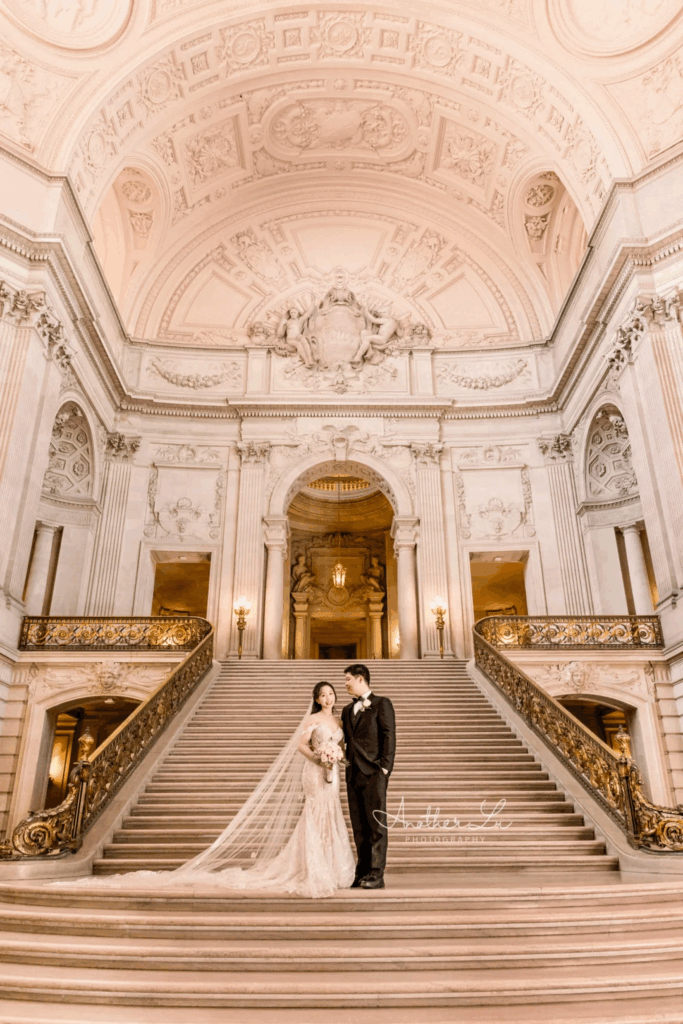
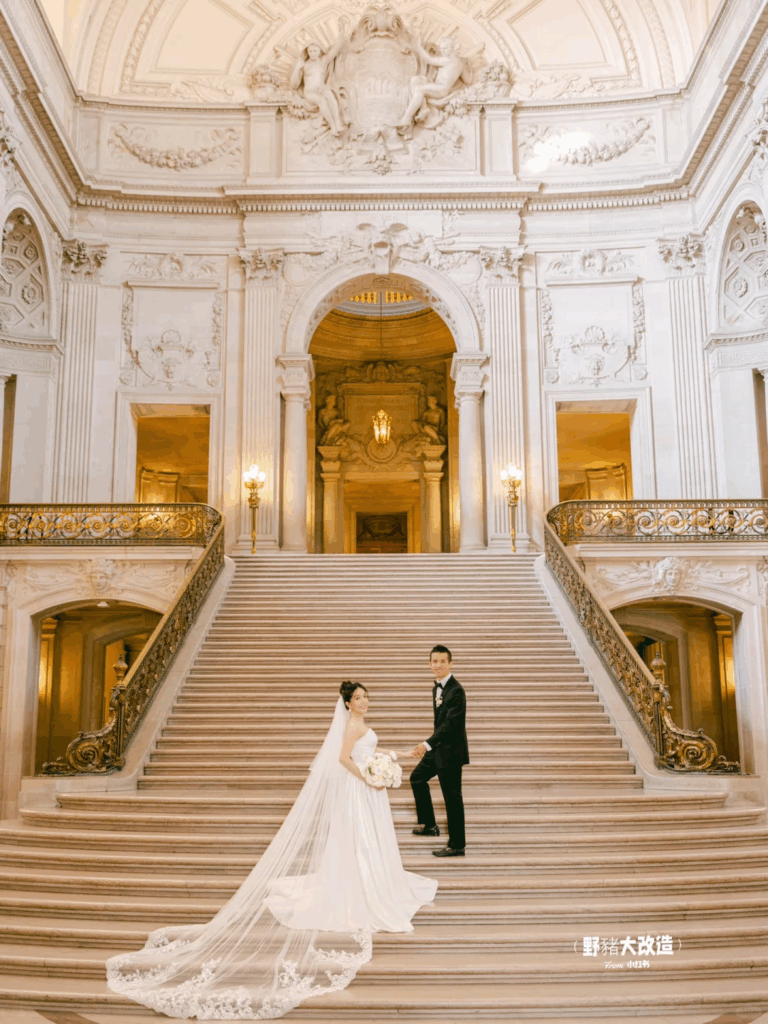
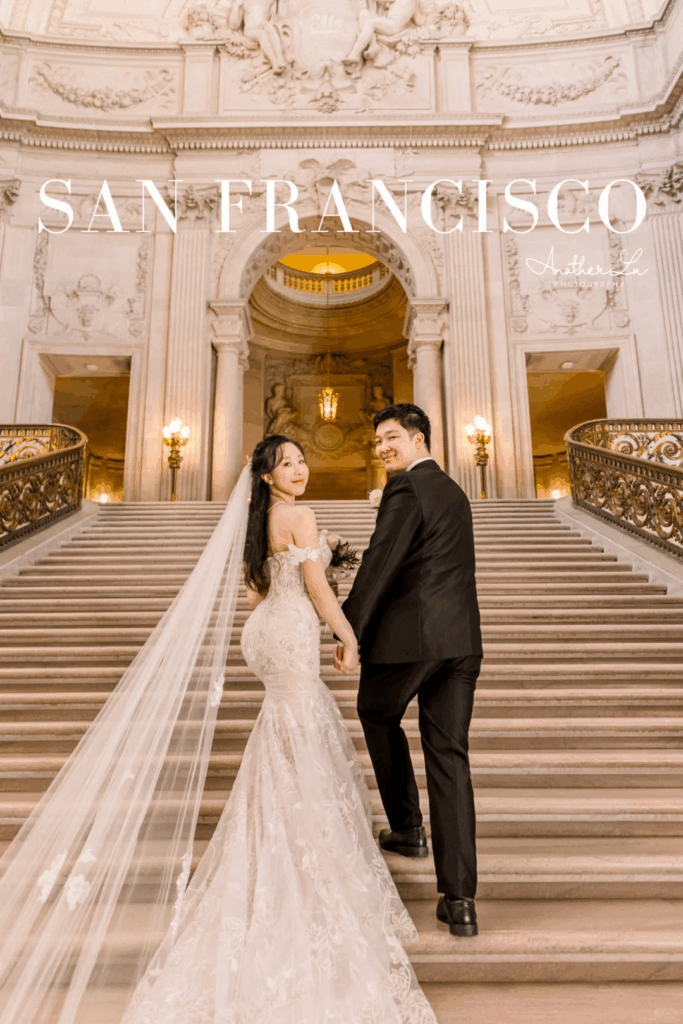
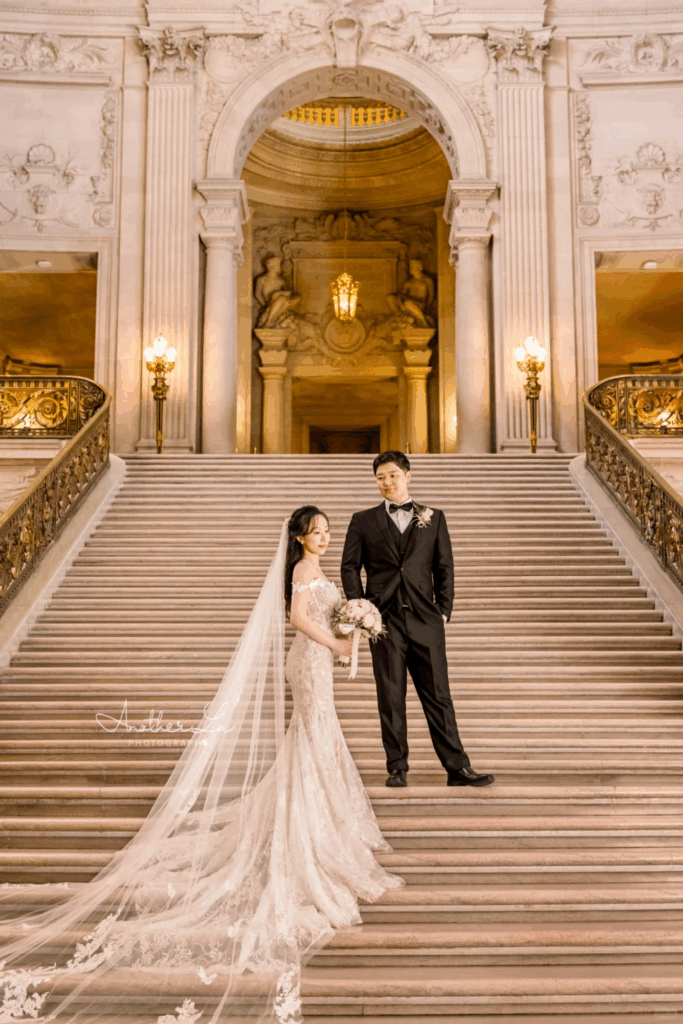
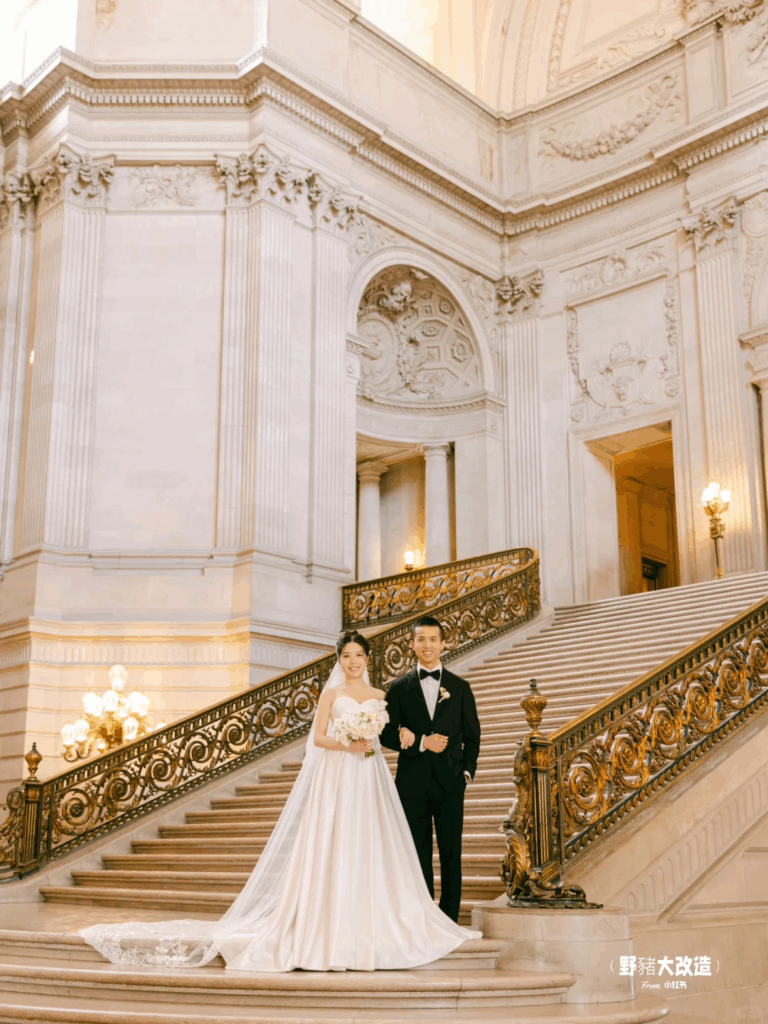
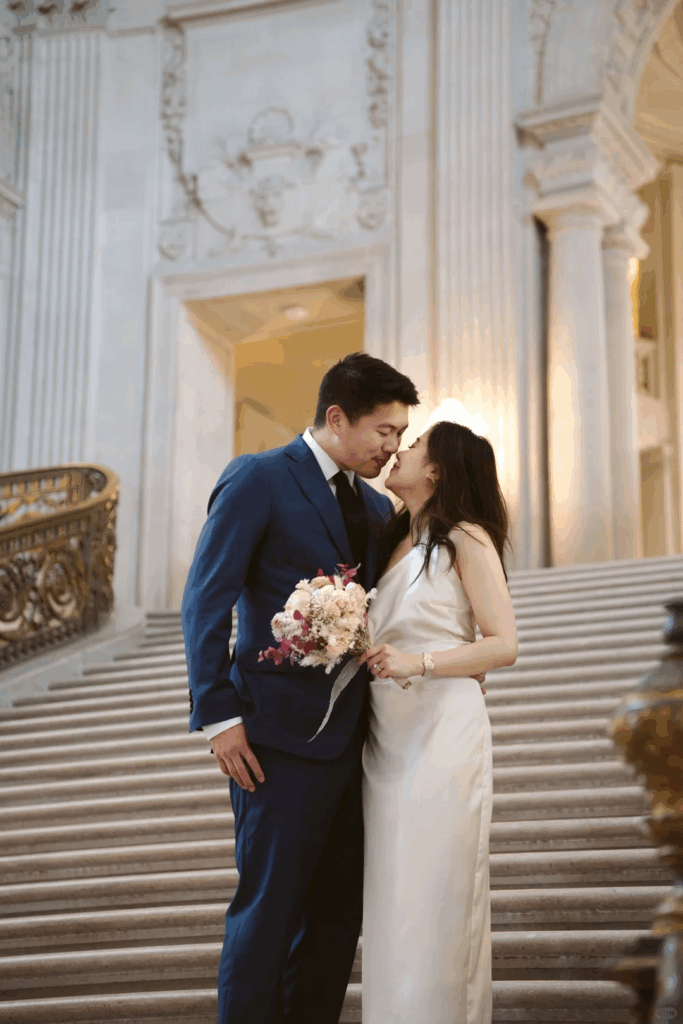
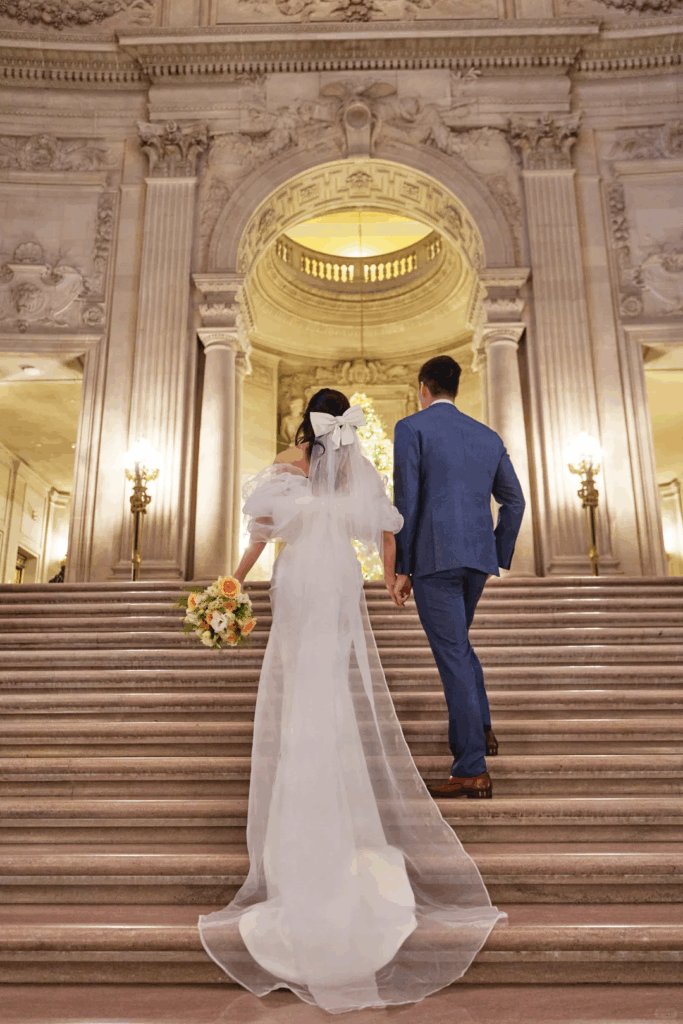
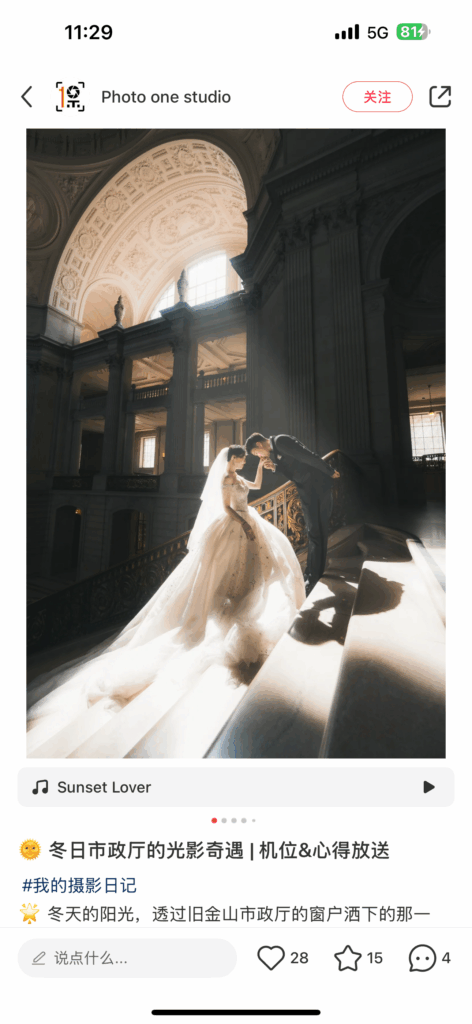
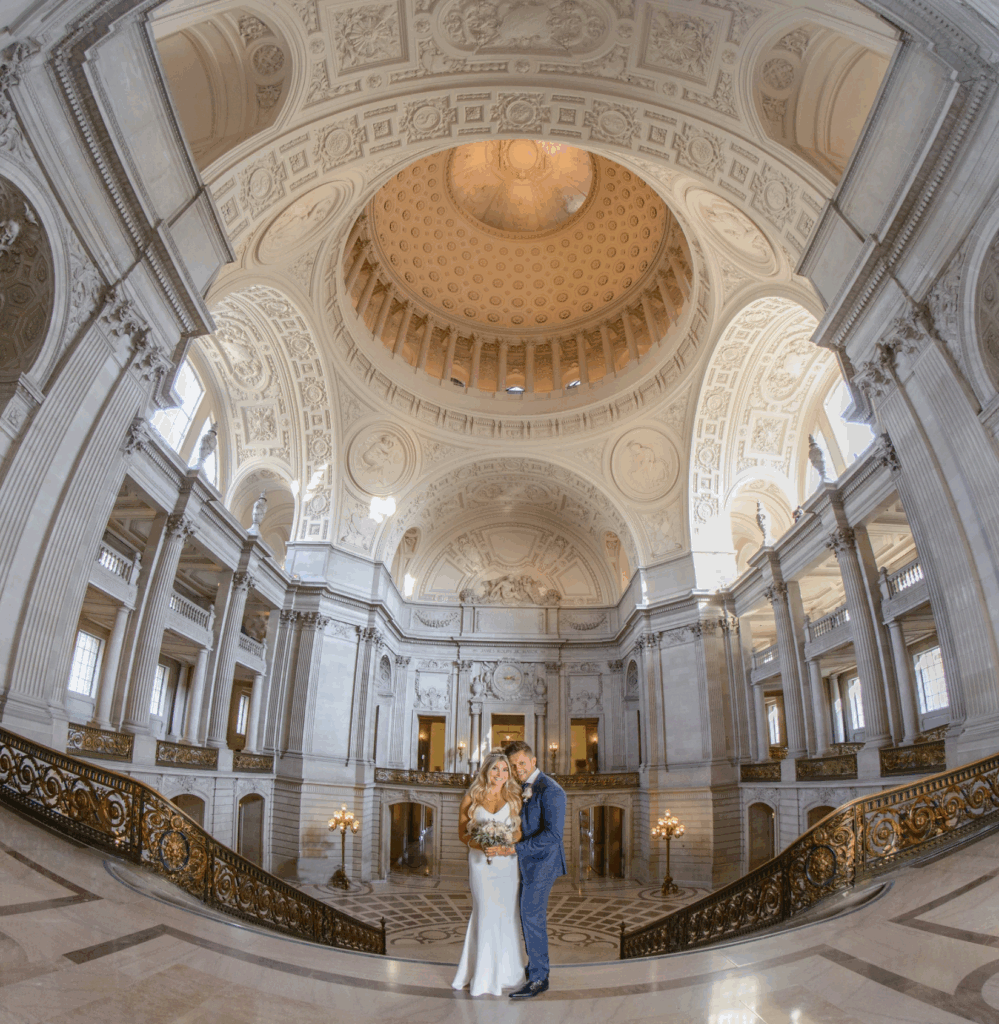
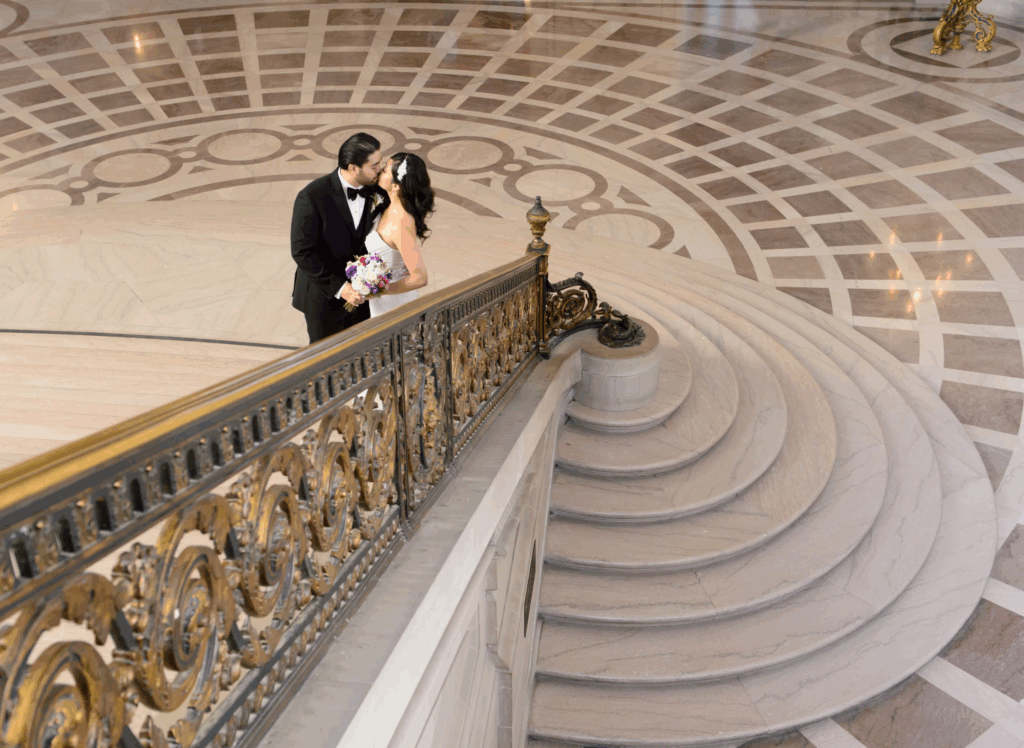
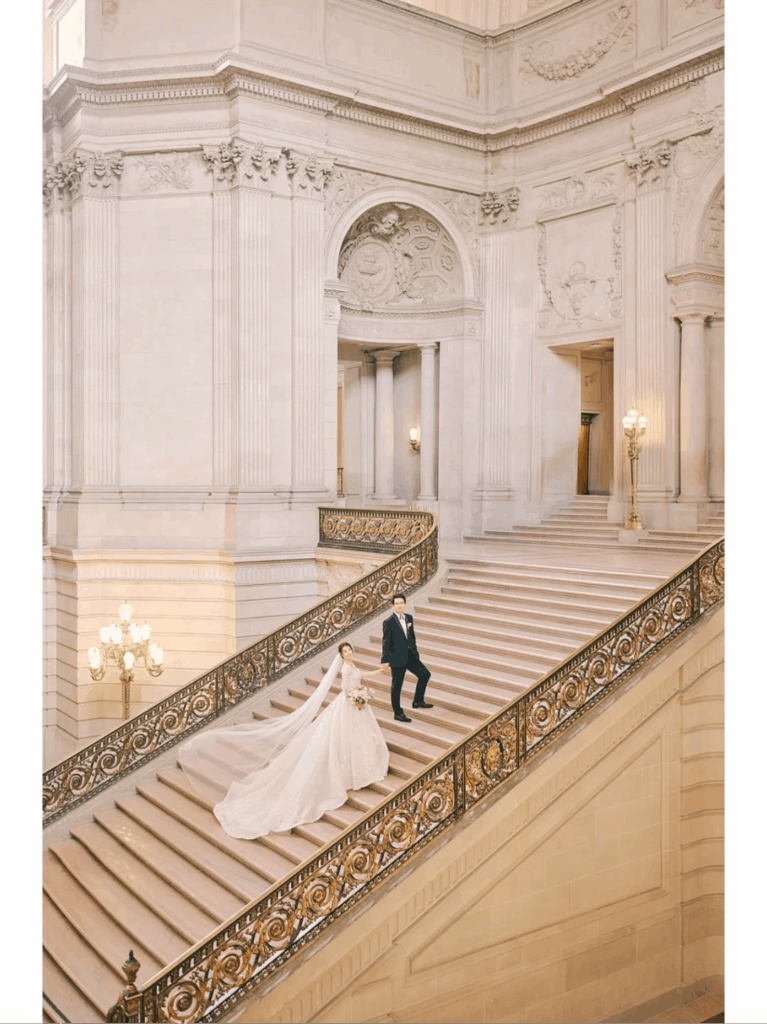
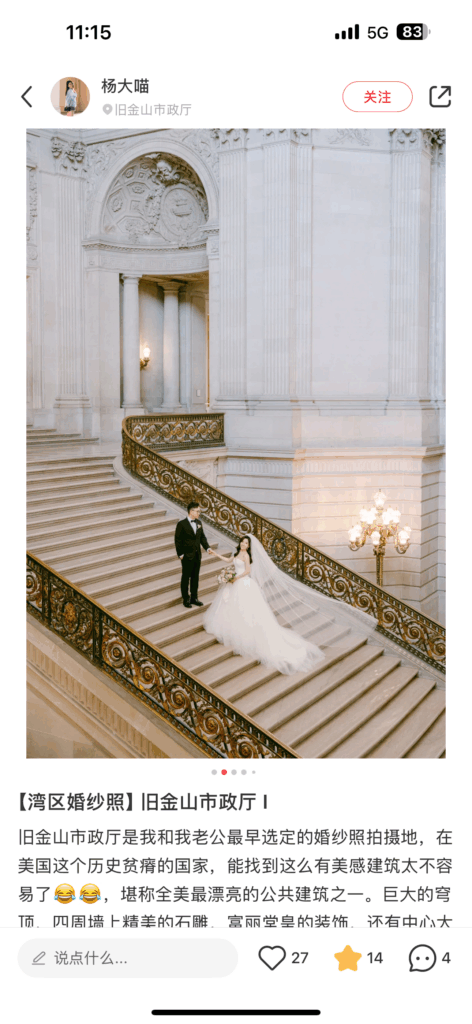
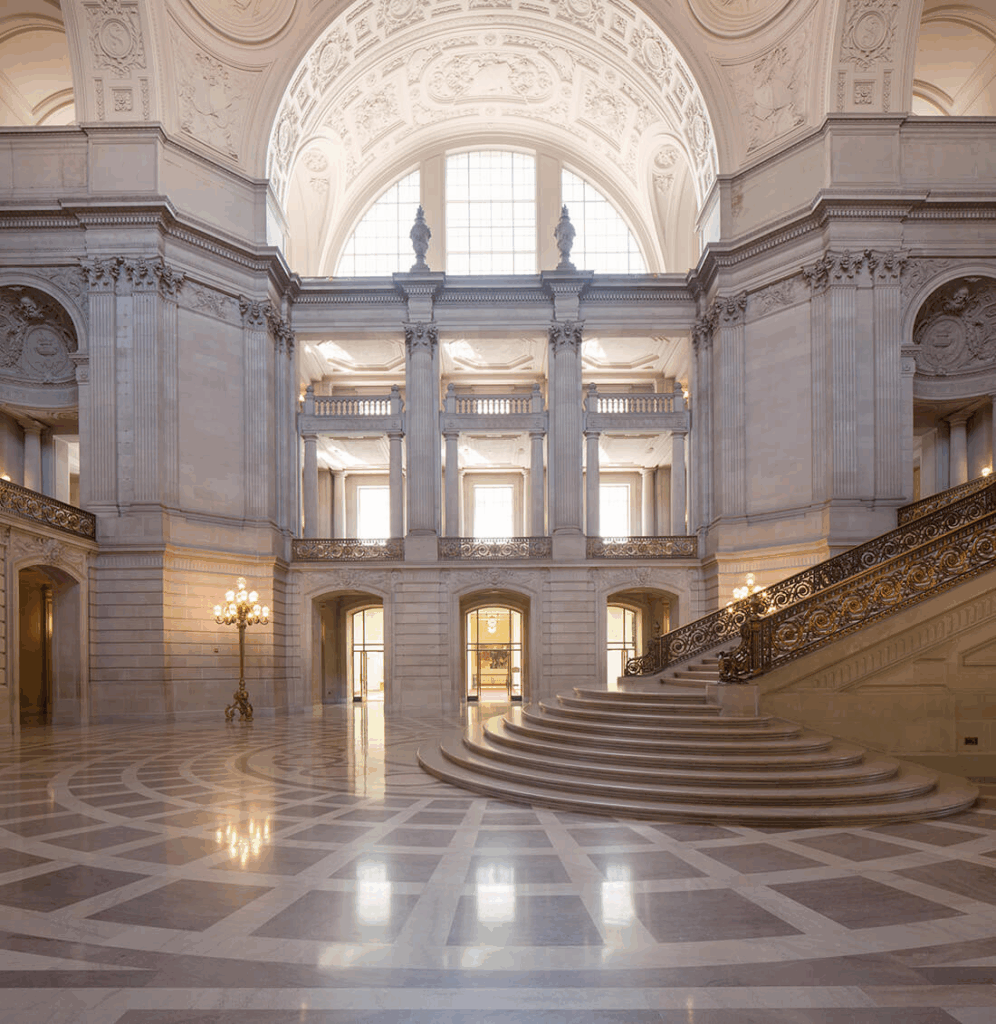
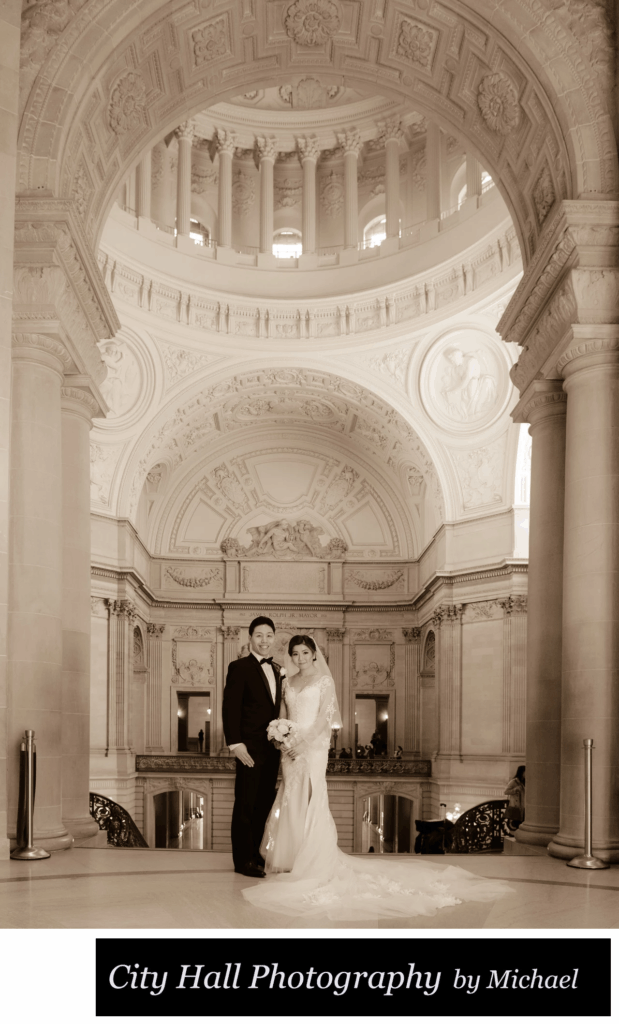
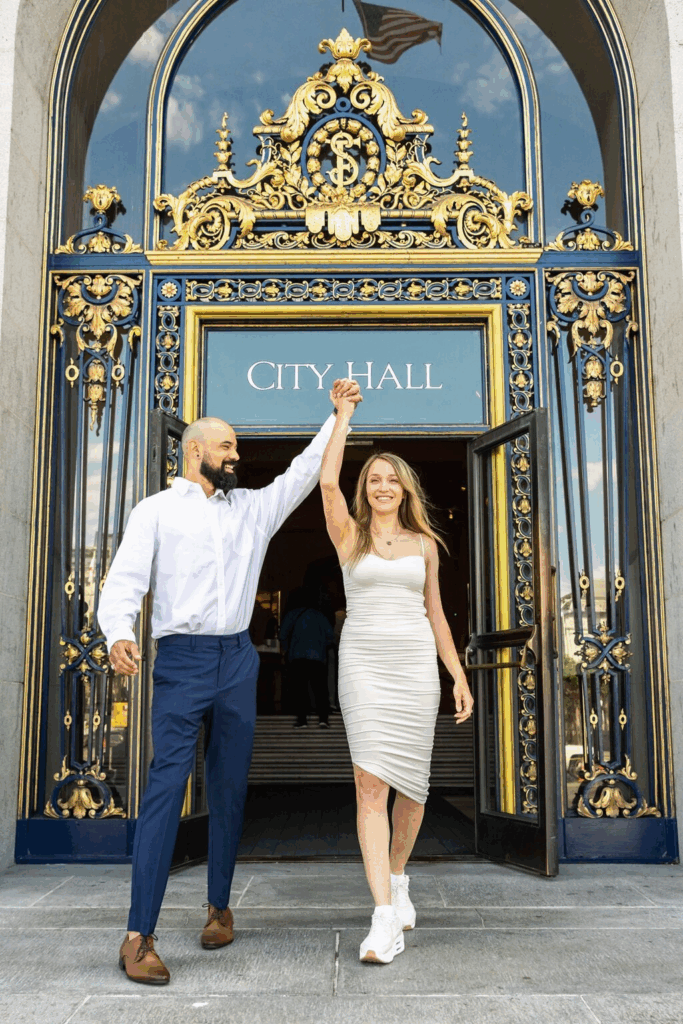
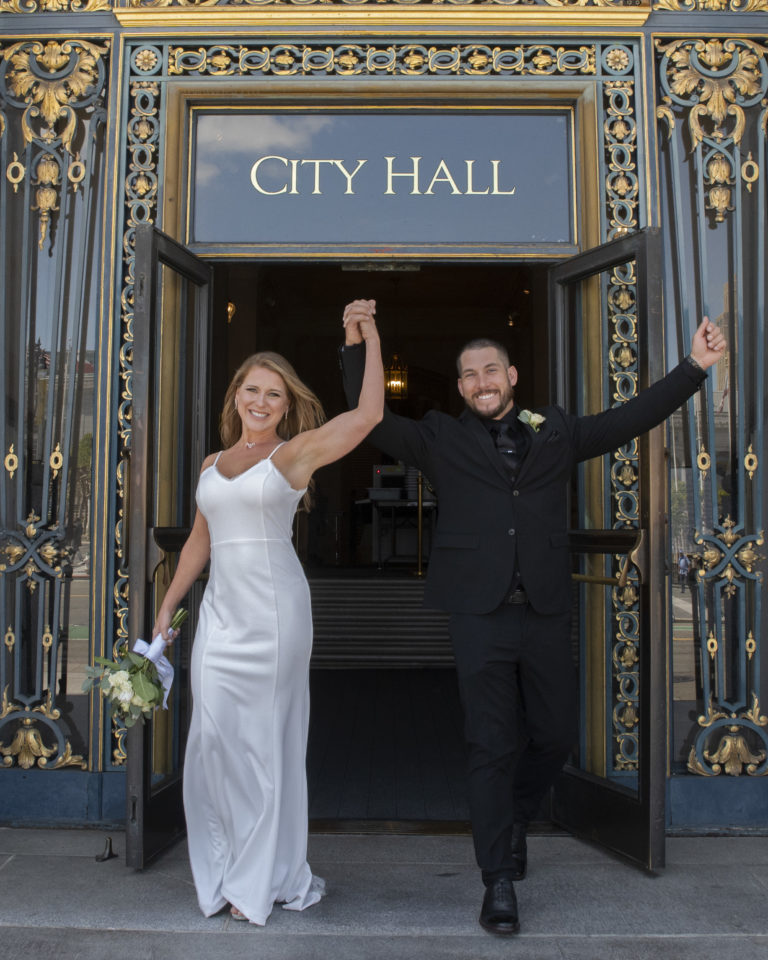
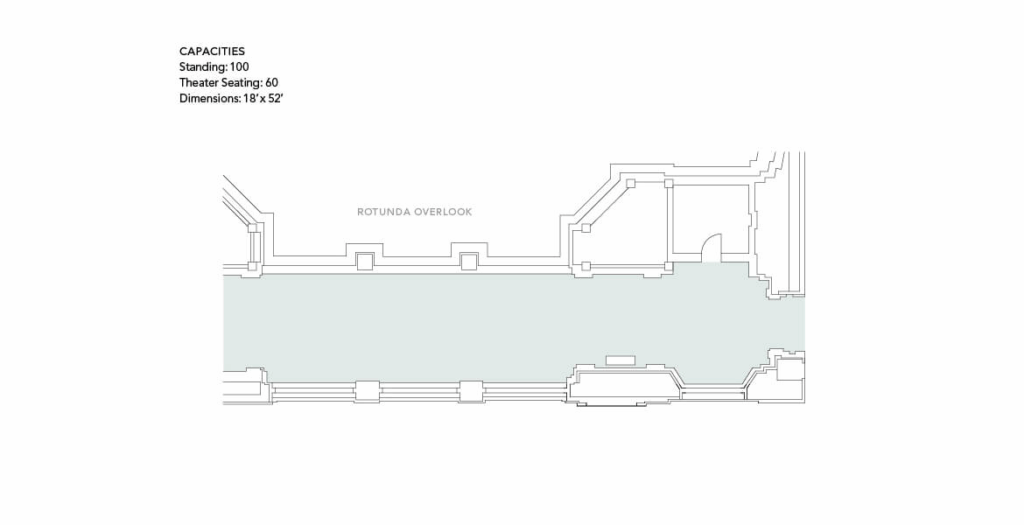
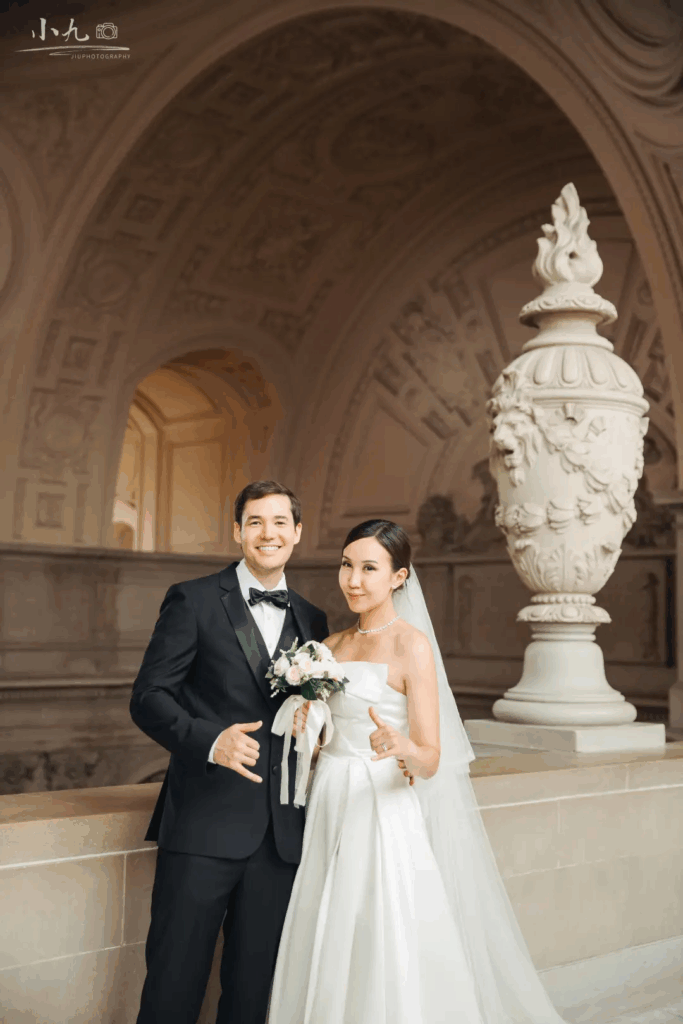
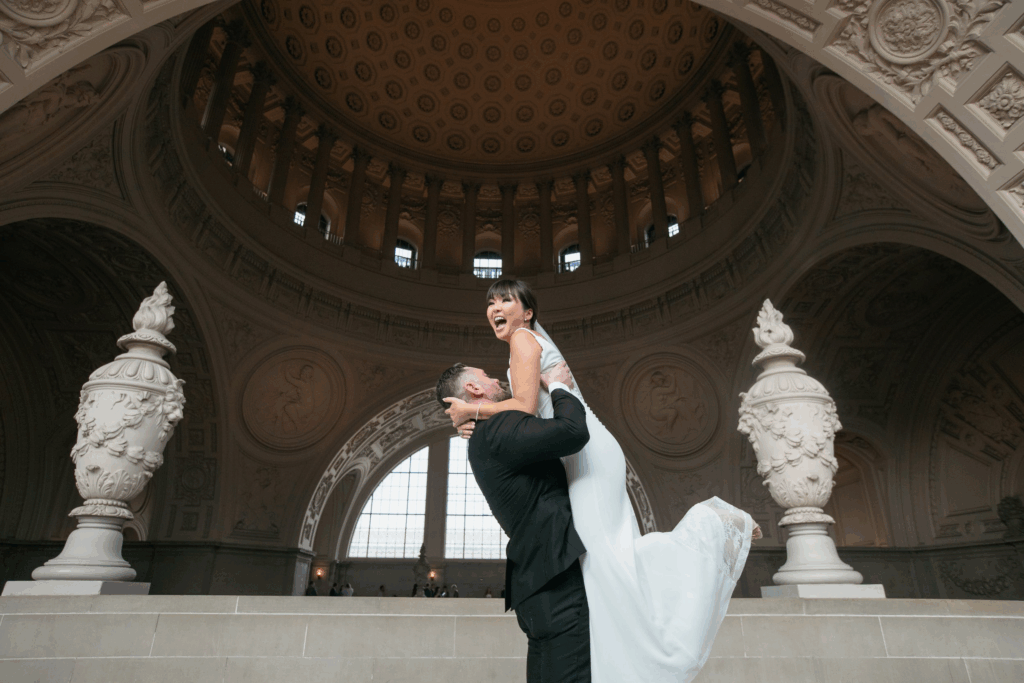
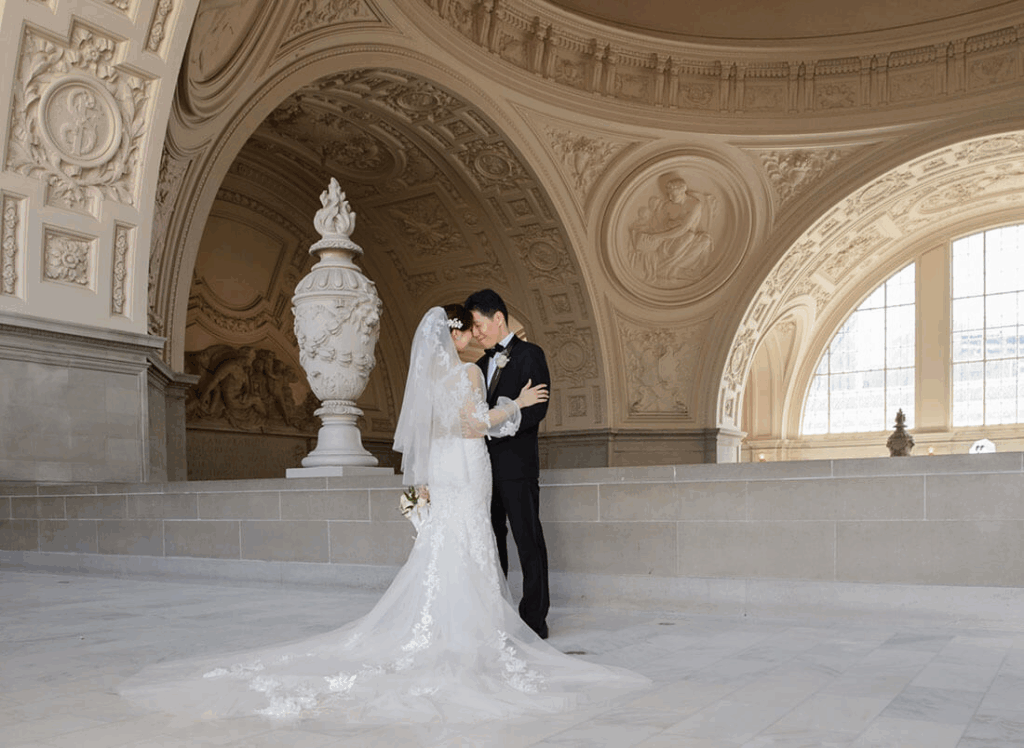
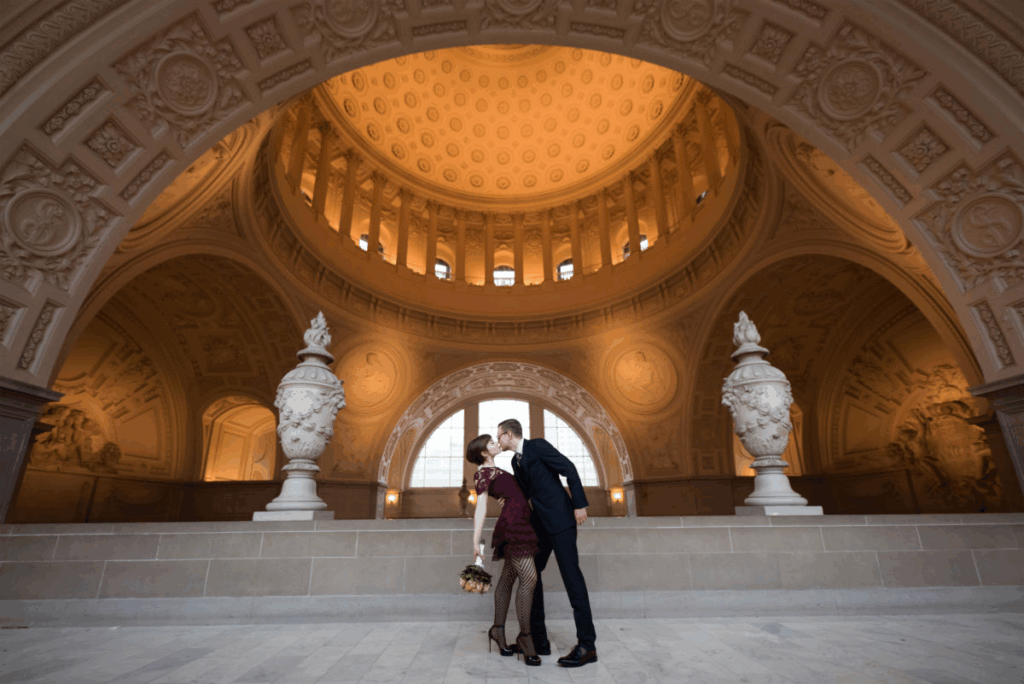
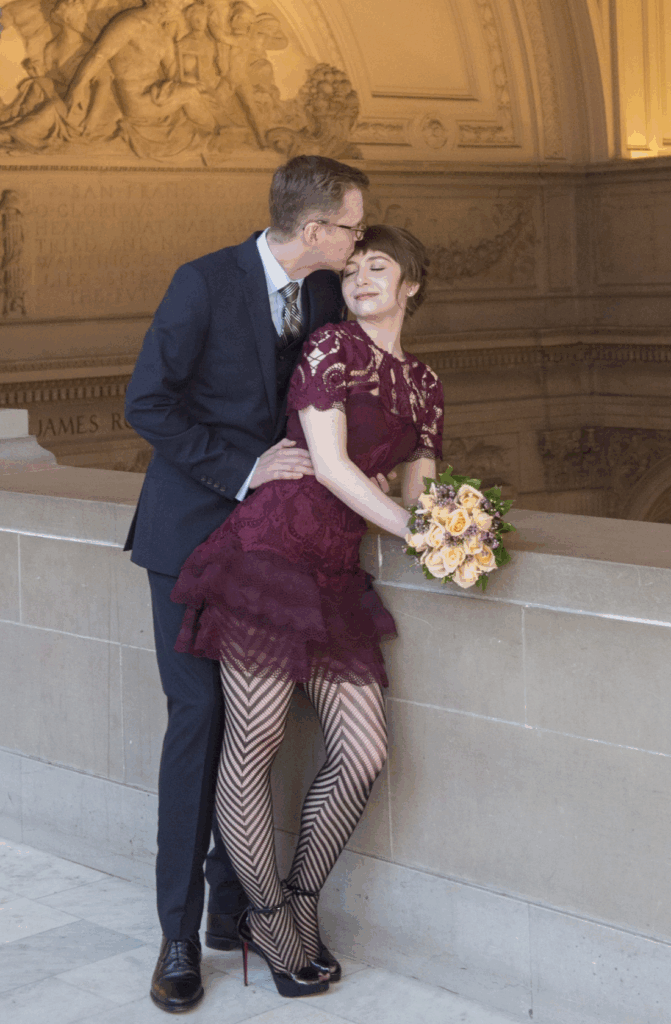
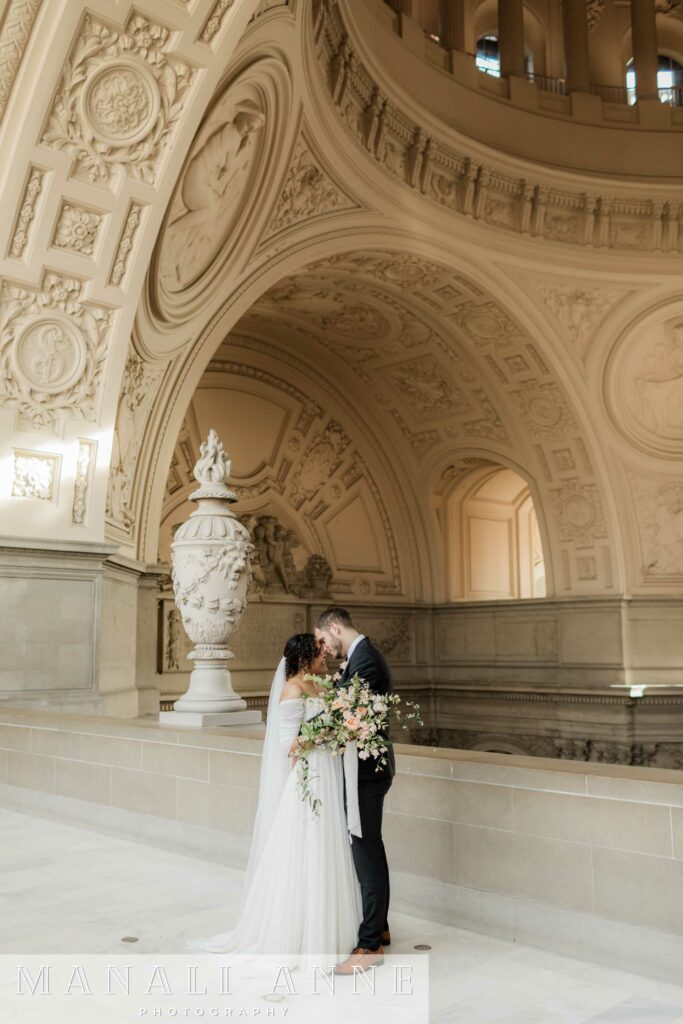
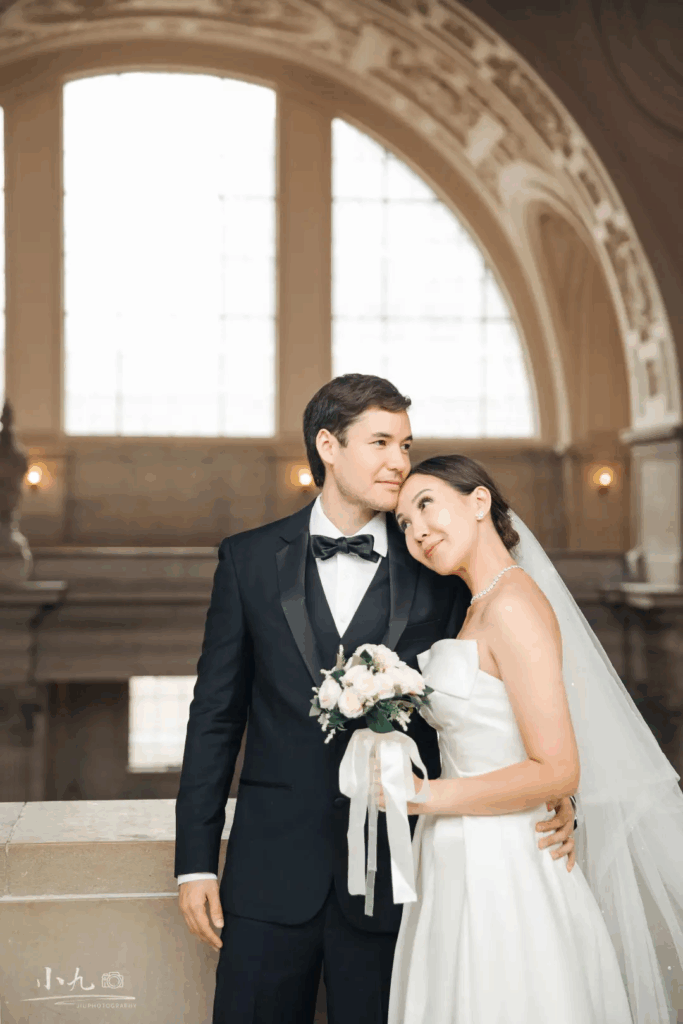
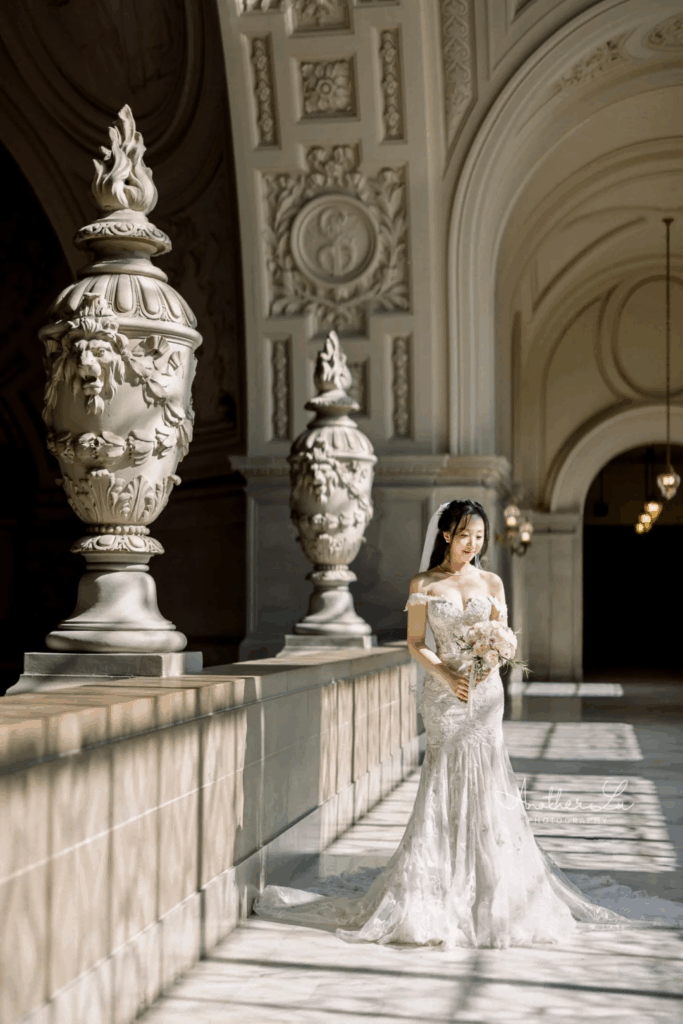
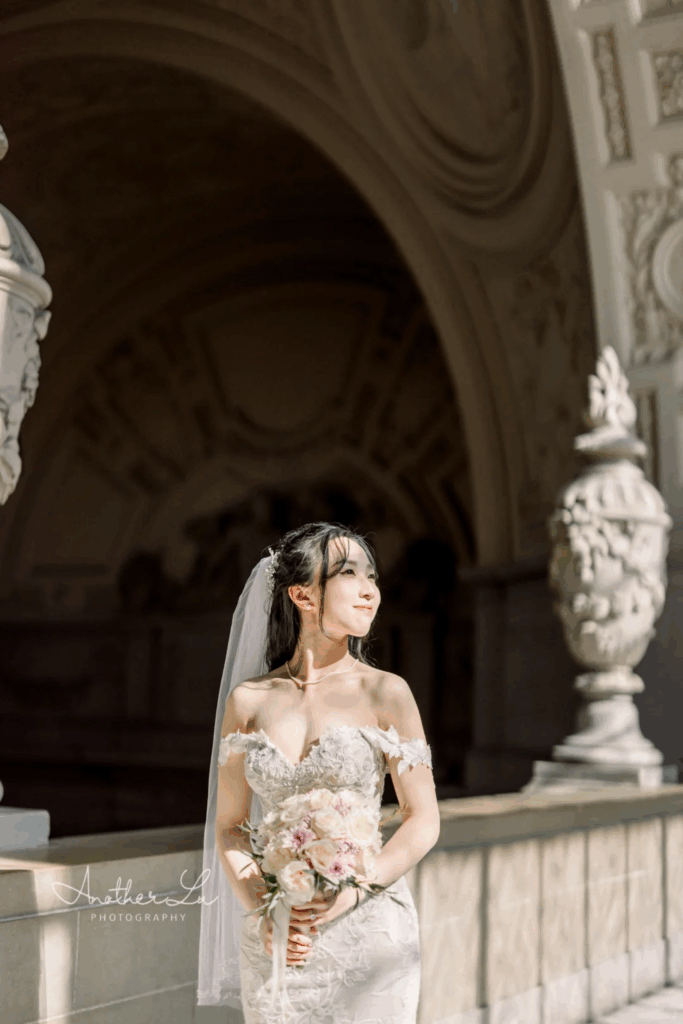
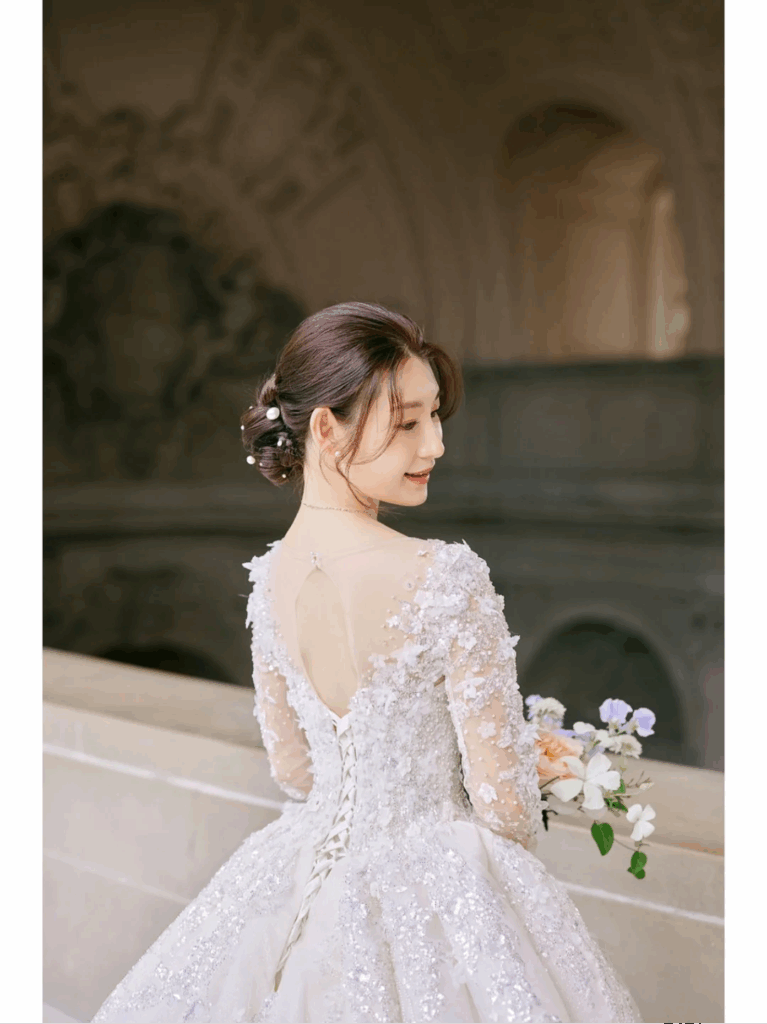
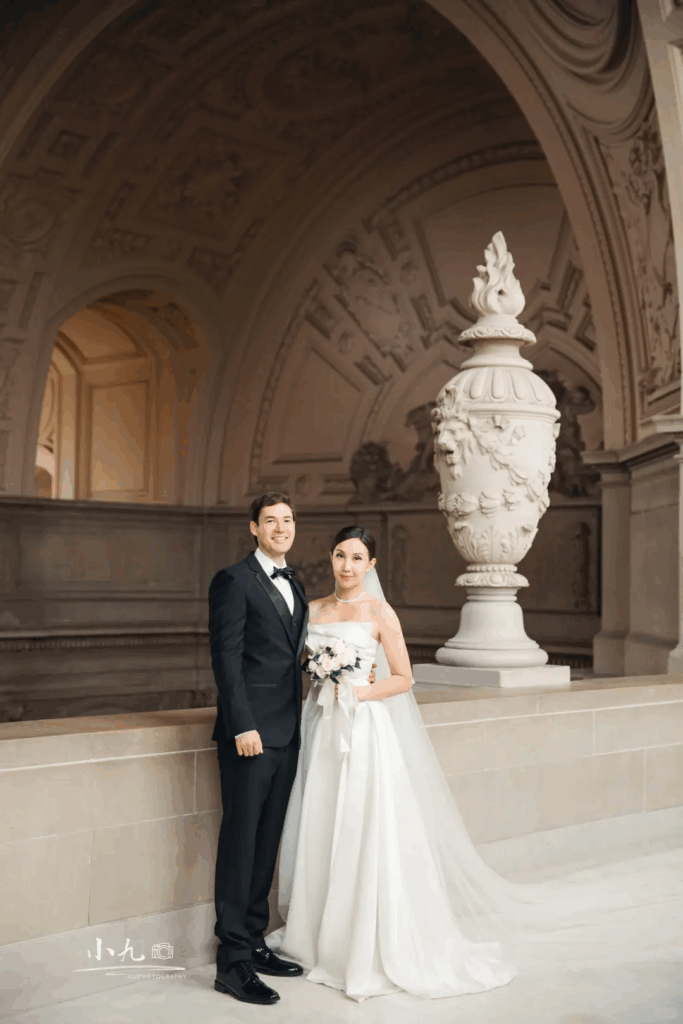
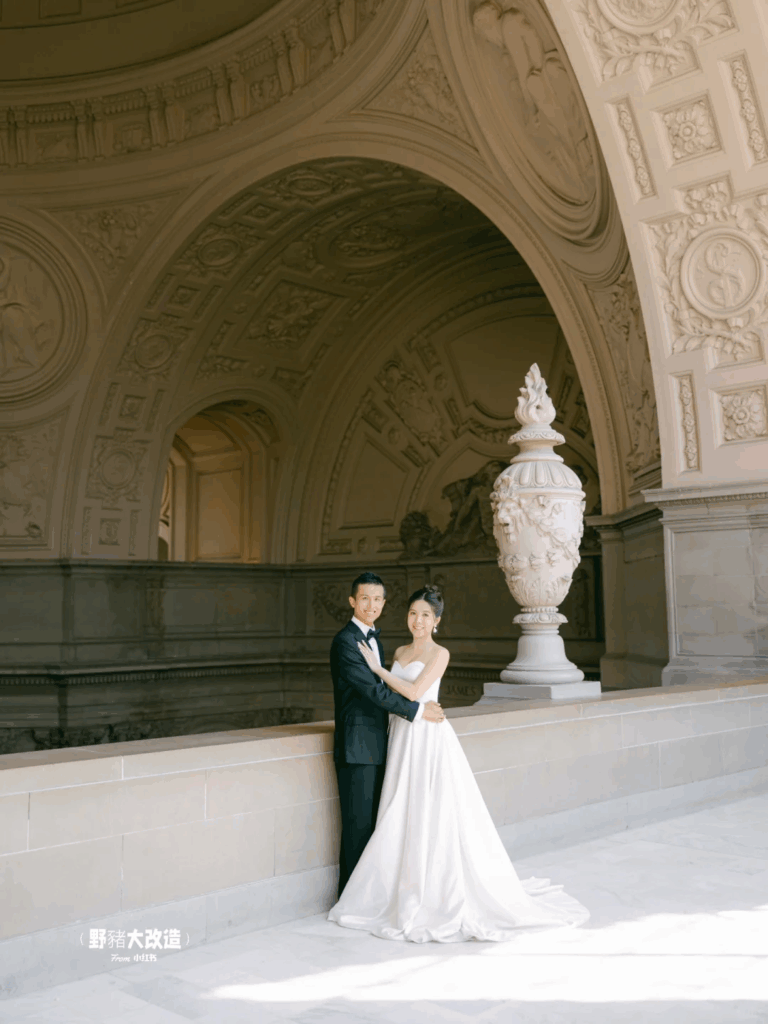
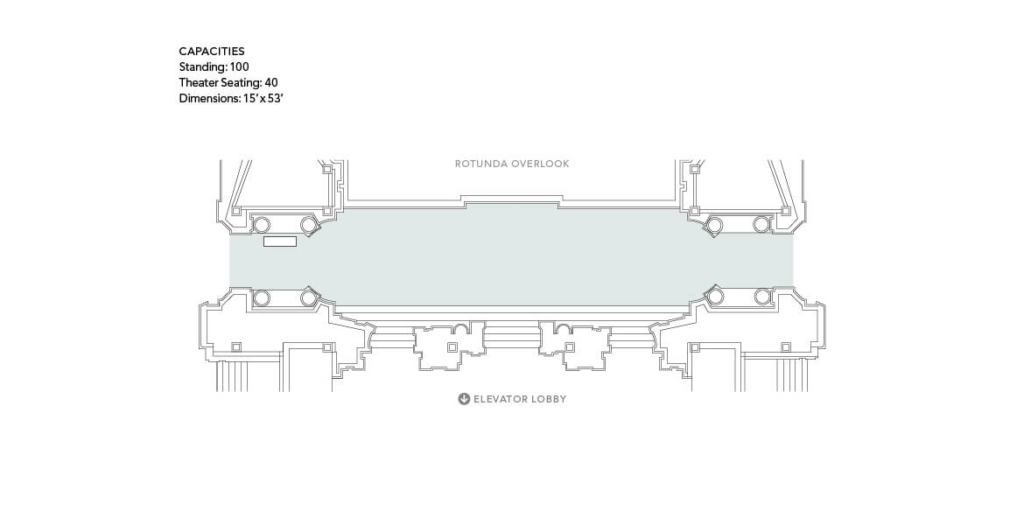
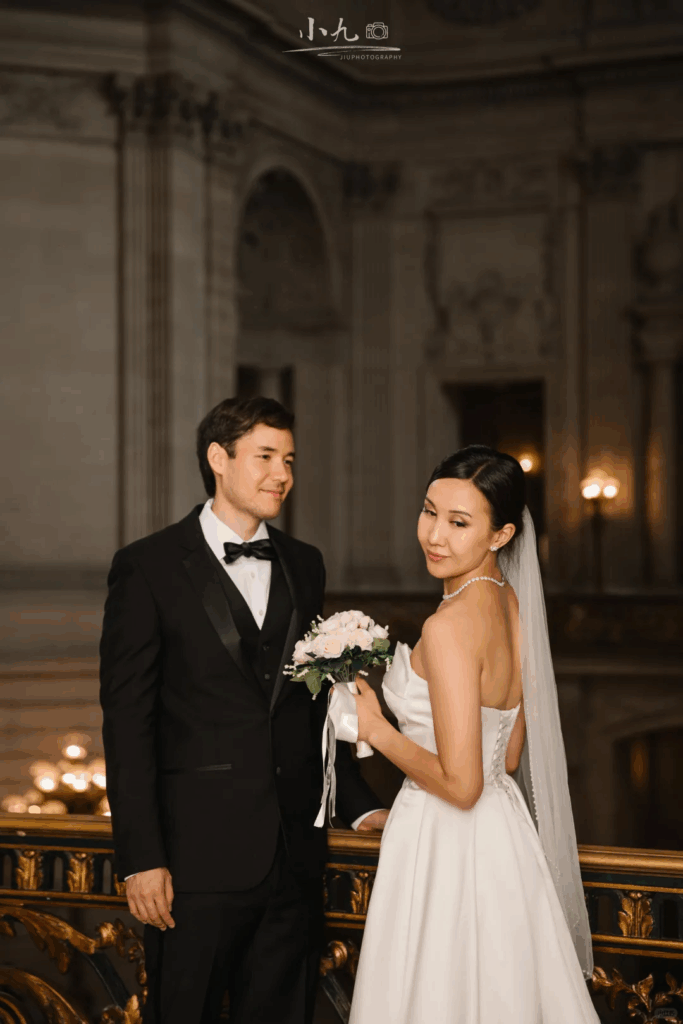
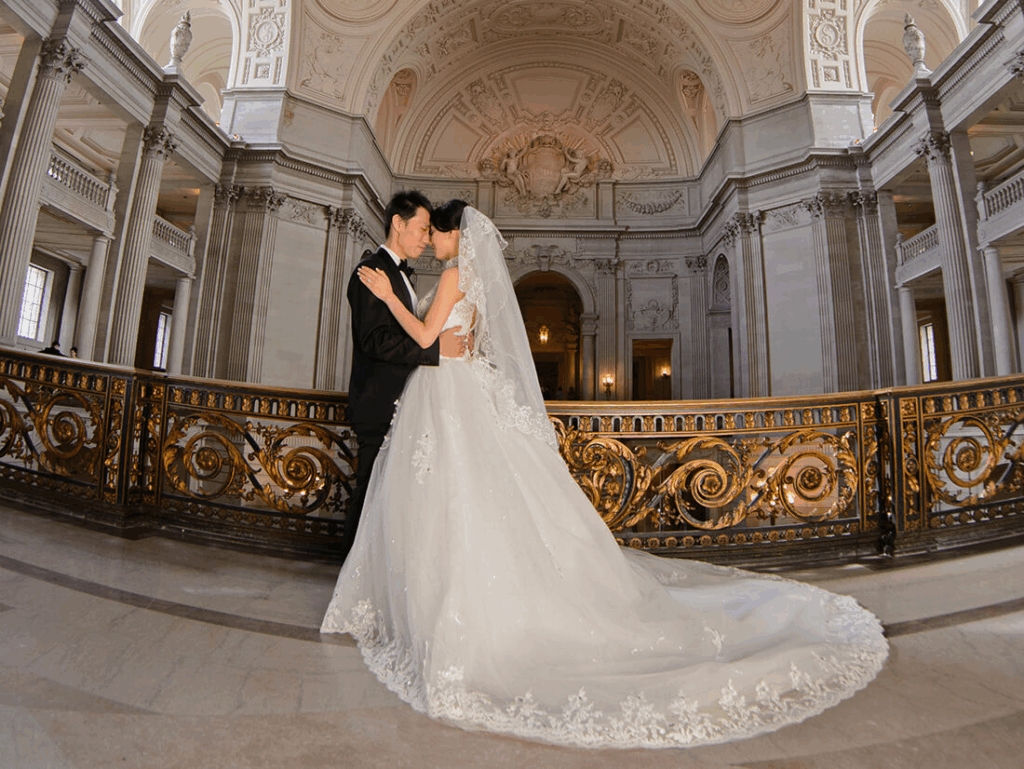
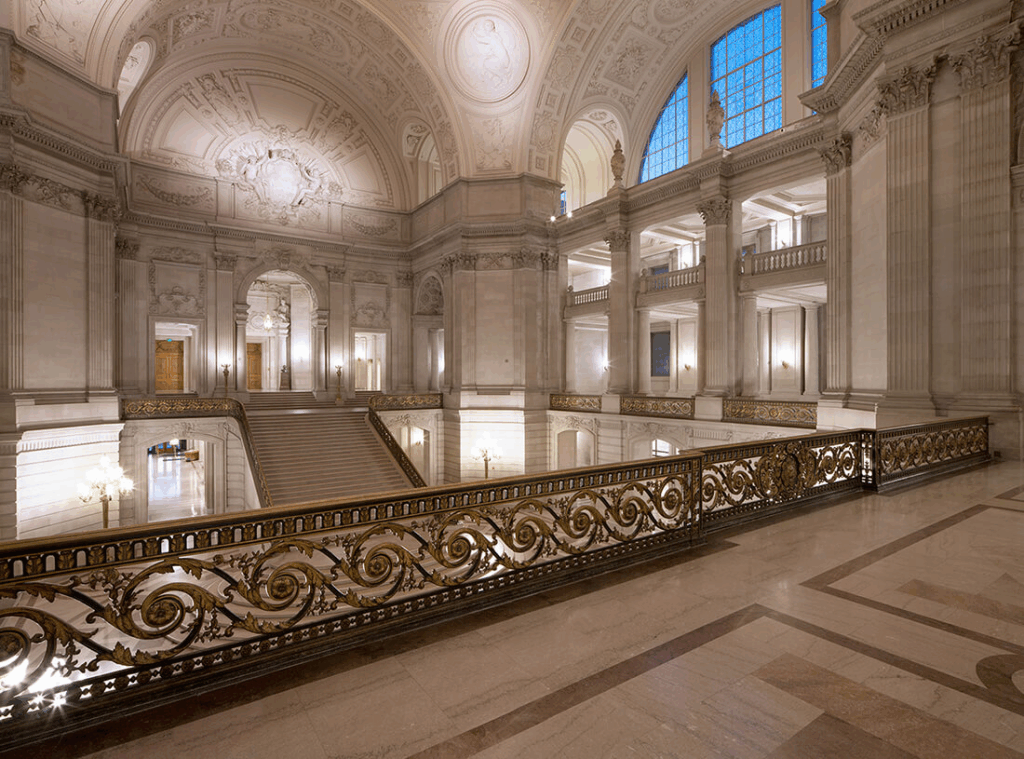
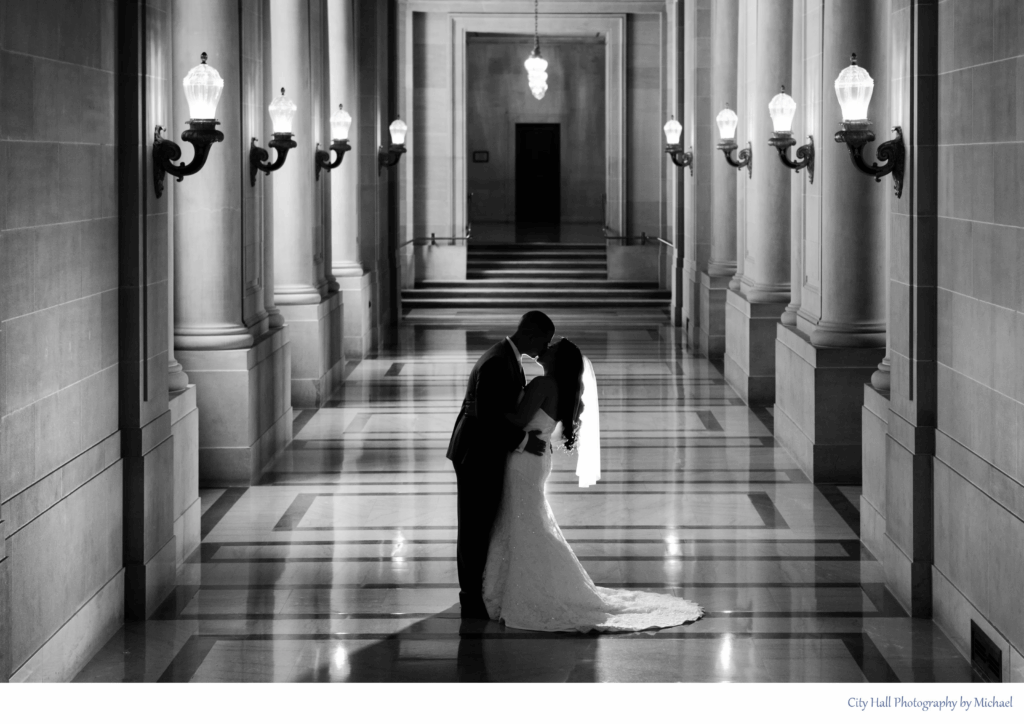
- SF City Hall Photo | SF City Hall Wedding Photographer
- San Francisco City Hall Wedding Pictures – Helpful Guide
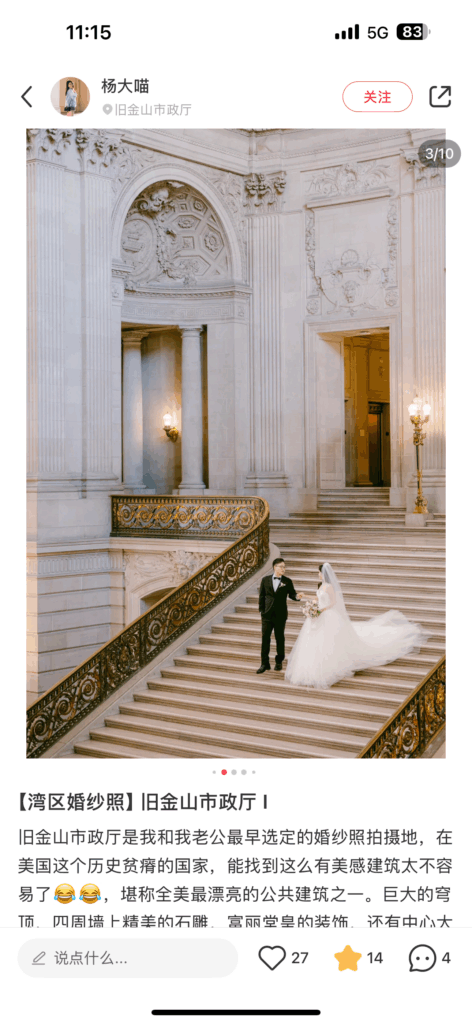
- 这个网站的WEDDING GALLERIES 中有不少好例子。
- City Hall with 3 San Francisco locations – Wedding Photography
- The Complete Guide to San Francisco City Hall Weddings | Sarah Eichstedt Photography
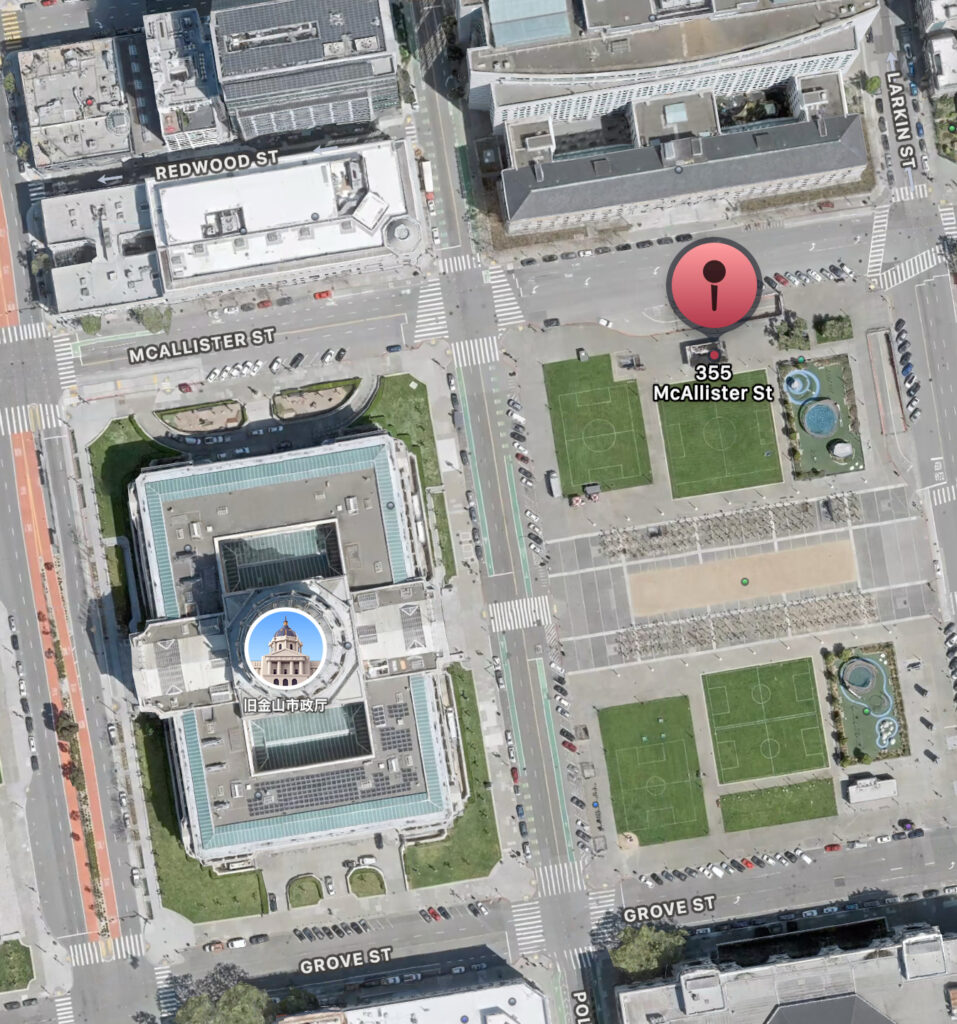
https://www.sfmta.com/garages-lots/civic-center-garage. 355 McAllister street 停车场
7类姿势
-
EOS R50 Related
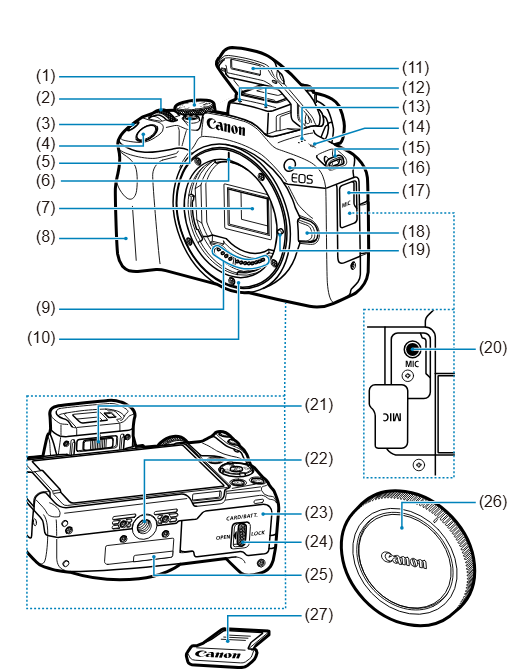
- (1) 模式转盘
- (2)
 拨盘
拨盘 - (3)
 ISO感光度设置按钮
 - (4) 快门按钮
- (5) 短片拍摄按钮
- (6) RF镜头安装标记
- (7) 图像感应器
- (8) 手柄
- (9) 触点
- (10) 镜头卡口
- (11) 内置闪光灯
- (12) 麦克风
- (13) 扬声器
- (14)
 焦平面标记
焦平面标记
- (15) 背带环
- (16) 自动对焦辅助光/减轻红眼/自拍定时器/遥控指示灯
- (17) 端子盖
- (18) 镜头释放按钮
- (19) 镜头固定销
- (20)
 外接麦克风输入端子
 - (21) 屈光度调节滑杆
- (22) 三脚架接孔
- (23) 存储卡/电池仓盖
- (24) 存储卡/电池仓盖锁
- (25) 序列号(机身编号)
- (26) 机身盖
- (27) 靴盖
-
Crop image
If you’re unable to crop images in WordPress running on XAMPP on your Windows 11 machine, the issue is likely related to the local development environment configuration. Here are several things to check and troubleshoot:
1. Ensure GD Library or ImageMagick is Installed
WordPress uses the GD Library or ImageMagick for image processing (such as cropping, resizing, etc.). XAMPP comes with GD installed by default, but it might not be properly enabled.
How to check:
- Check if GD is enabled in PHP:
- Open the
php.inifile in your XAMPP installation directory (e.g.,C:\xampp\php\php.ini). - Look for a line like this:
;extension=gd - If it’s commented out (with a
;at the beginning), remove the semicolon to enable GD:extension=gd - Save the file and restart Apache through the XAMPP control panel.
- Open the
- Check GD installation:
- To verify GD is working, create a new file called
phpinfo.phpin your WordPress directory with the following content:<?php phpinfo(); ?> - Access this file in your browser (e.g.,
http://localhost/phpinfo.php). Look for the GD section. If it’s not there, GD is not properly installed.
- To verify GD is working, create a new file called
- Enable ImageMagick (Optional):
- If you want to use ImageMagick instead of GD, you can also install and configure it. Check if ImageMagick is enabled in your
php.inifile by searching forextension=imagick.
- If you want to use ImageMagick instead of GD, you can also install and configure it. Check if ImageMagick is enabled in your
2. Check File Permissions
Since you’re working on a local XAMPP server, file permissions might not be the issue in the same way they are on a live server. However, you should ensure the
wp-content/uploadsfolder is writable.How to check:
- In the XAMPP installation directory, navigate to the
htdocsfolder where your WordPress files are stored. - Right-click on the
wp-content/uploadsfolder and select Properties. - Ensure the folder is not read-only, and that your user account has permission to write to this folder.
3. Increase PHP Memory Limit
Sometimes, cropping an image requires more memory than what the default PHP configuration allows. Increasing the PHP memory limit can resolve the issue.
How to fix:
- Open your
php.inifile (located inC:\xampp\php\php.ini). - Look for the line:
memory_limit = 128M - Increase the value (e.g.,
256Mor512M):memory_limit = 256M - Save the file and restart Apache through the XAMPP control panel.
4. Clear Browser Cache
Sometimes the issue could be related to a caching problem in your browser.
How to fix:
- Clear your browser cache or try accessing your WordPress site in Incognito/Private Mode.
- Alternatively, try a different browser to rule out any browser-specific issues.
5. Check for JavaScript Errors
JavaScript errors on the page can prevent the image editor from functioning correctly.
How to fix:
- Open your browser’s Developer Tools (press
F12orCtrl+Shift+I). - Go to the Console tab and check for any JavaScript errors when you try cropping an image.
- If you see any errors, they might point to a plugin conflict or missing resources that are preventing the image crop functionality.
6. Plugin Conflicts
Plugins can sometimes interfere with WordPress’s ability to crop images. You can temporarily deactivate plugins to see if one of them is causing the issue.
How to fix:
- Log into your WordPress dashboard.
- Go to Plugins > Installed Plugins.
- Deactivate all plugins and try cropping the image again. If it works, reactivate the plugins one by one to identify the culprit.
7. Theme Conflict
It’s possible that the active WordPress theme is causing the issue.
How to fix:
- Temporarily switch to a default theme like Twenty Twenty-One.
- Try cropping an image again. If it works, your active theme might be the cause of the problem.
8. Re-upload the Image
If the image file is corrupted, WordPress may fail to process it for cropping.
How to fix:
- Delete the image from the WordPress Media Library.
- Re-upload the image and try cropping it again.
9. Check PHP Error Logs
If none of the above steps resolve the issue, check the PHP error logs for any errors related to image processing.
How to check:
- In XAMPP, you can find PHP error logs in the following location:
C:\xampp\php\logs\php_error_log
- Check the log for any errors related to image processing or memory limits.
10. WordPress Debug Mode
You can enable WordPress debugging to capture more detailed error messages.
How to enable debug mode:
- Open the
wp-config.phpfile in the root of your WordPress installation. - Add the following lines before the
/* That's all, stop editing! Happy publishing. */line:define('WP_DEBUG', true); define('WP_DEBUG_LOG', true); define('WP_DEBUG_DISPLAY', false); - After enabling debugging, check the
wp-content/debug.logfile for errors related to image cropping.
Conclusion
By following the above steps, you should be able to diagnose and fix the issue preventing you from cropping images in WordPress on your Windows 11 XAMPP setup. If you’re still encountering problems, feel free to share any error messages or details from the debugging process, and I can help you further!
- Check if GD is enabled in PHP: